Setting up Automated Emails
Last modified:
Need the software to send an invoice before the due date? Or a reminder email if the payment is late? Or simply a welcome letter at the start of the tenancy. Landlord Vision does it all. This guide covers what you need to do to set this up.
Firstly, go to Settings > Main Automated Tenancy Emails
In here are two very basic templates to give you a start. We recommend that you update these to something more usable. Use the Mail Merge fields to include things like the recipients name, overdue amount on the invoice, the invoice number, addresses and so on. One template is set to send at 7 days after the due date and one at 14 days after the due date. You can change or delete these or add your own if you wish.

You have the option to set up templates that will send a number of days before or after the rent due date, tenancy start date and tenancy expiry date.
If the message is set to go based on the tenancy start date, you can also tick a box that will send the Welcome pack. Ensure that everything that needs to be displayed on the welcome pack has Shared with Tenants enabled.
There is the option to attach additional files as well. Please note that these files are not generated automatically by this process, only the email text is. So if you want the software to send a particular file with the message, make sure it already exists before the date trigger.
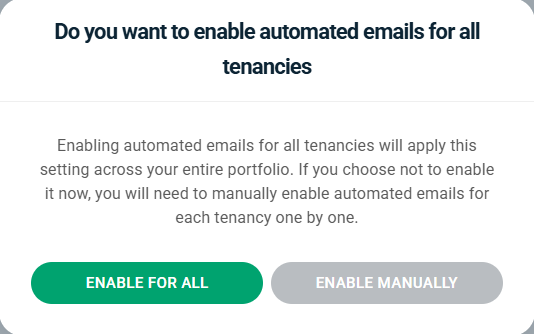
Enable the automated emails using the slider at the top of the screen. A message will pop up. Press the green button to enable automated emails on all tenancies, or the grey button to allow it on certain tenancies only. You will need to go in to those tenancies and enable it there.
Invoices can be sent on or before the due date. This setting is found in the Repeating Income of the Tenancy.
