Setting Up Bank Reconciliation Rules
Last modified:
Landlord Vision allows you to set up rules for matching payments and you can reconcile against those. This guide covers what the functionality does and runs through some examples for you to hep you get started.
This feature is still being developed. In it's current state, it is better for payments to regular suppliers and other income. It doesn't really match rent at this time and you should continue to search for the invoice if the software has not matched it.
How it works
On the Reconcile page, you are given three options. Match, Rule and Add Expense / Income. Match allows you to search for a bill or income that already exists in the software. Add Expense / Income allows you to manually add a bill or invoice that the payment will be reconciled with. Rule allows you to set up a rule that similar payments will be matched with. This is the section we will be concerned with here.
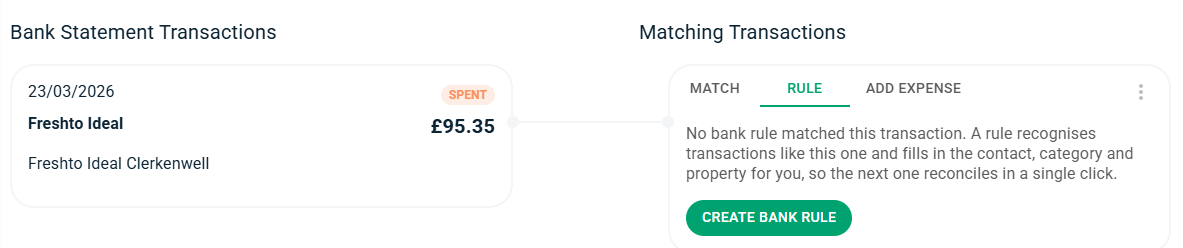
Firstly the Reconcile page will look for a match.
If no match is found, the software will then look for a rule to match with. It does this by going through the rules from top to bottom until it finds one in which the transaction will fit.
If no rule has been set up for that transaction, the Add Expense / Income tab will be used by default.
Setting up rules
Press Create Bank Rule.
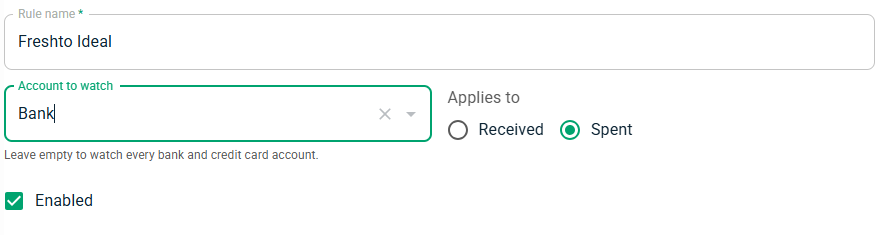
Give the rule a name so that you can find it later if you need to.
You can tell the software to only monitor a certain account for that rule, if that payment only ever goes in or out of a certain account. This can speed up the process if you have many accounts and transactions.
Define whether this is an income or an expense. If you have incomes and expenses for the same contact, you will need to set up a rule for the incomes and a rule for the expenses.
Set Conditions.
Here you can set what conditions you want to use to find this and similar transactions in the future. You can match on the Payee, Reference, Description, any of these text fields or the Amount. You can also say whether you want to match only that line or whether you want to include variations as well.
By default, the Conditions will include everything that is filled in, to make it easier for you to find that information. You can change these or even delete these entries if you want to make it a bit more open ended.
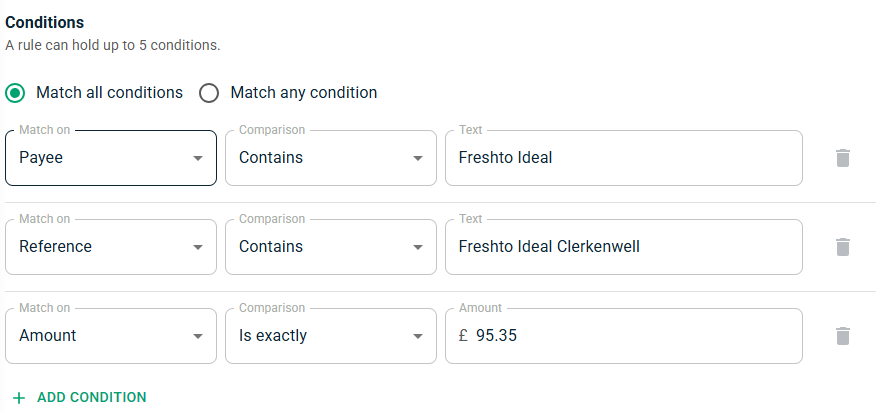
In the above example, the rule will match all payments from Freshto Ideal with the Reference Freshto Ideal Clerkenwell. If the name or reference changes it will still match if they both still include these words. If they no longer include all these words, it will no longer match. The amount also has to be exactly £95.35. If I want the rule to find all transactions with Freshto Ideal and categorise them all the same way, I can delete the Amount line and it will find more payments.
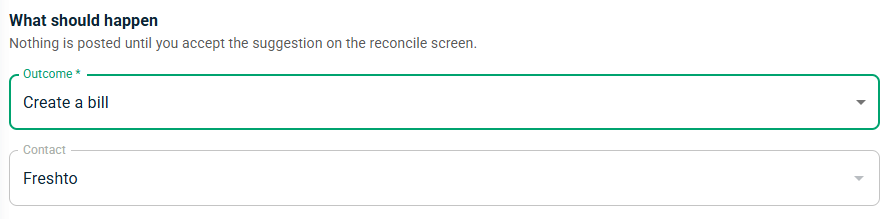
Next, define what should happen.
Tell the rule whether to Add a Bill or Invoice, or to ignore the transaction. Ignoring will raise a journal to match against and keep the balances correct. You will need to add a contact as well.
Finally, Split the transaction.
For the most part, you will probably be raising a bill for a single item. In this case, set 100% of the transaction to be against a certain transaction. Or, you can use this to split the amount between different categories in whatever way you require.
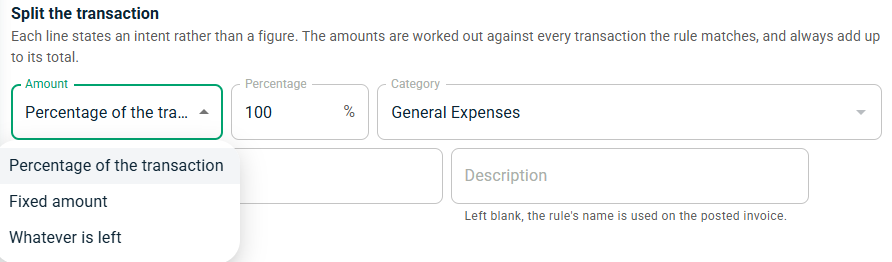
You can Test this rule to see which transactions it finds and make sure that it gets the right ones. If it doesn't, then you can make amendments to the rules to make sure they are correct.
Examples
You use the same supplier a lot, but not necessarily on a regular basis and rarely for the same amount. This includes variables phone bills and trips to the hardware store. Simply set up the supplier in the conditions and make it raise a bill for all of the amount.
Your bank charges you a fee for each transaction you make. Again, set the supplier and maybe the reference to capture all these fee amounts so you don't have to keep entering them in.
Your interest only mortgage is being overpaid by a set amount each month. Set the loan provider and the loan reference in the conditions and then assign a fixed amount to mortgage capital. Then set Whatever is left to mortgage interest.
You have leant the company some money and are reclaiming it back. Set the outcome to Ignore and then set the Director's Loan Account.
You have used the business card for a number of personal expenses. Again, use the ignore option to write off all your unwanted bills.
